
New Player Basics
Battle Screen Features Guide
Combat in Genesis War delivers deep strategic gameplay through a wide range of tactical choices and unit combinations.
To help you stay in control on the battlefield, this guide introduces the key UI elements and functions available on the battle screen.
Familiarizing yourself with these features will make your tactics smoother, faster, and more effective.
Deployment Screen
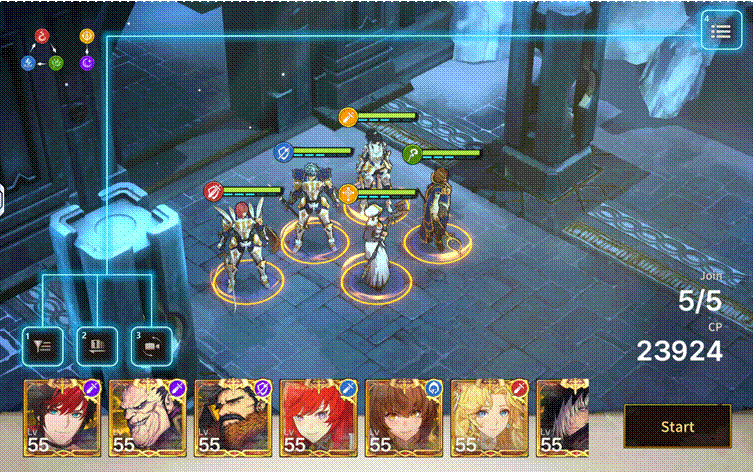
The Deployment Screen lets you organize and optimize your squad before the battle begins. Tap the icons at the top of the screen to access the following features in order: Filter → Turn Order & Tactics → View Mode → In-Battle Menu
Interface Guide
1) Filter
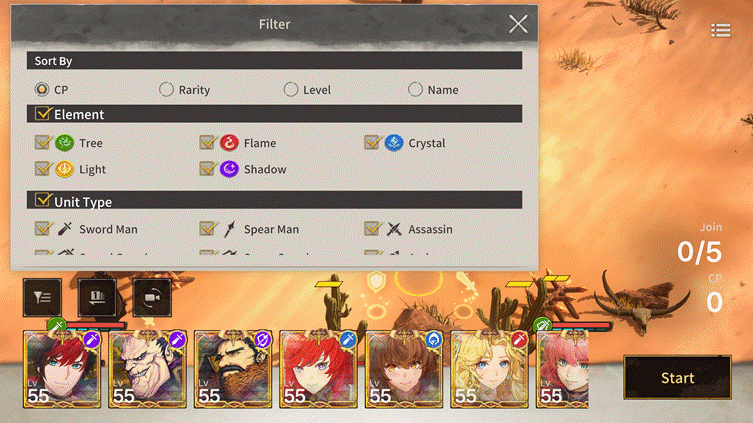
Use Filter to manage your roster and prepare for battle based on your tactical needs.
- Sort By: CP, Rarity, Level, Name.
- Filter By: Rarity, Element, Unit Type.
2) Turn Order & Tactics
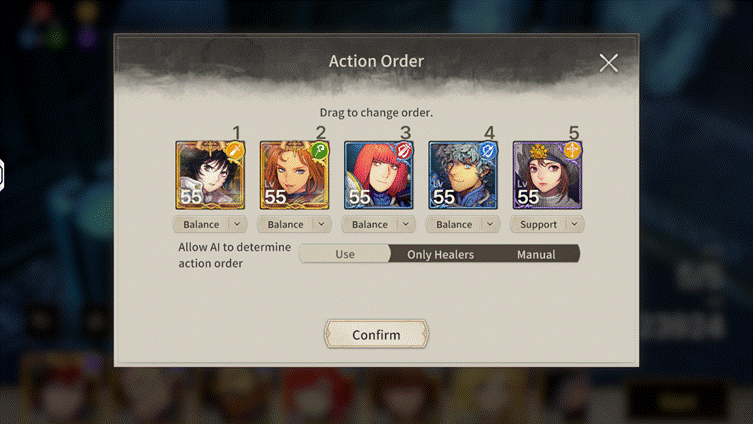
Set your deployment order and determine unit behavior during Auto-Battle.
- Offense: Aggressively advances toward enemies.
- Defense: Avoids danger zones and prioritizes survival.
- Balance: A flexible approach combining offense and defense.
- Support: Focuses on healing allies and providing buffs.
3) View Mode (Perspective)
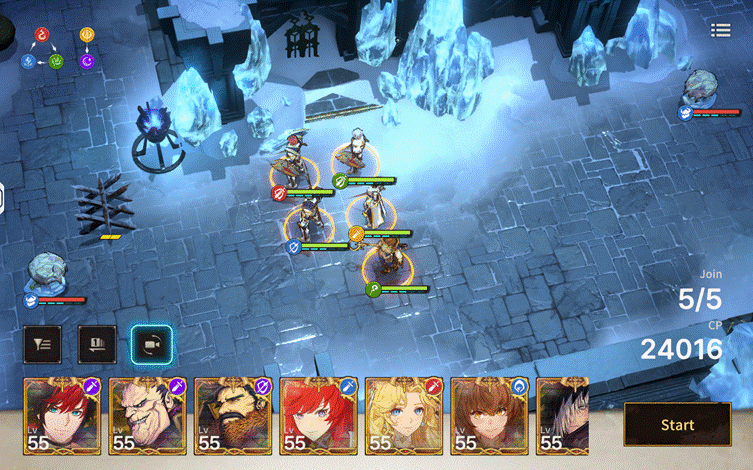
Switch to Strategic View to check terrain layout and unit placement from a bird’s-eye perspective before battle.
4) In-Battle Menu
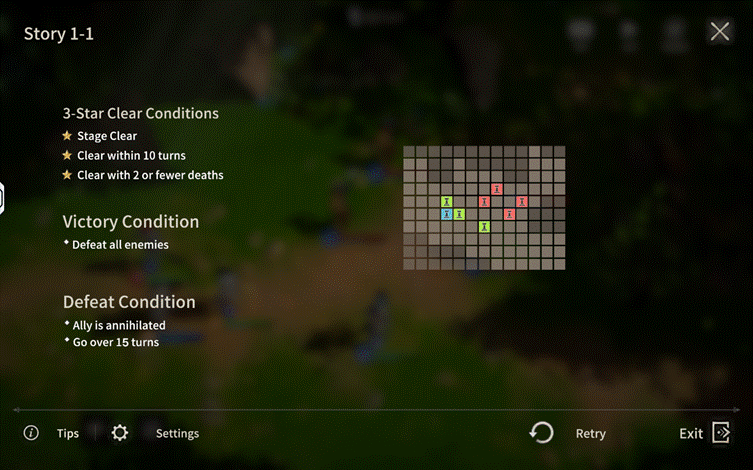
Access the following options during combat:
- Stage Info: Review current mission objectives.
- Battle Tips: Check guides on Elemental advantages, Type matchups, and Class traits.
- Settings: Adjust graphics, sound, notifications, and other gameplay options.
- Retry: Restart the battle from the Deployment phase.
This option is unavailable in certain content, such as Arena.
- Exit: Forfeit the battle and return to the Lobby.
Combat Screen
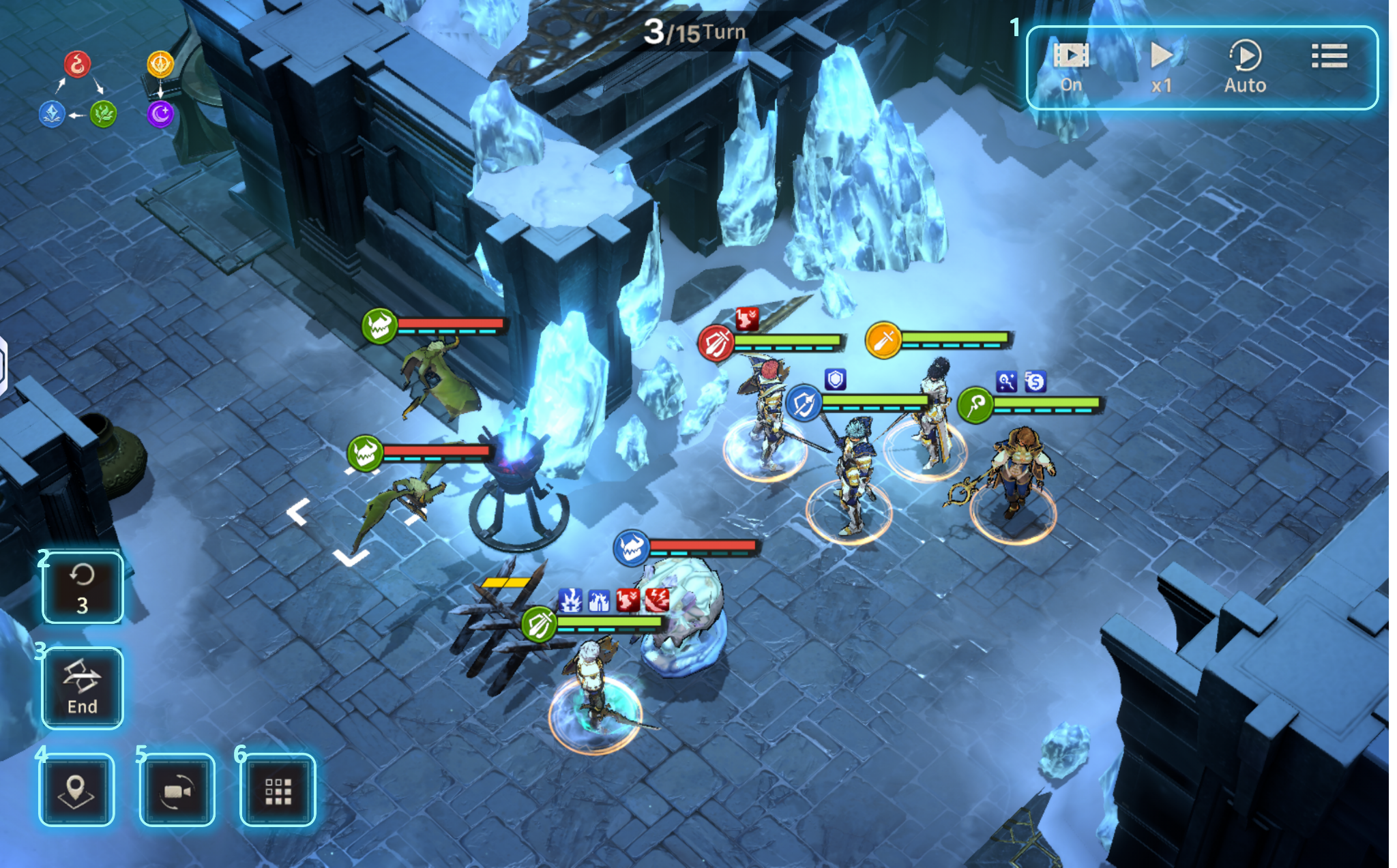
The Combat Screen includes several convenience features to help you stay in control during battle.
Interface Guide
1) Battle Animations
Set how combat animations are displayed:
- On : Always displays combat animations.
- Ally Only: Displays animations only for allied actions.
- Off: Disables combat animations entirely.
2) Speed Toggle
Switch combat speed between 1x / 1.5x / 2x to suit your playstyle.
3) Auto-Battle
When Auto-Battle is enabled, units act automatically. Auto-Battle may be less precise than manual control, but it’s useful for clearing stages quickly.
Tactics settings configured on the Deployment Screen apply during Auto-Battle.
4) Rewind
Rewind lets you return to a previous point in battle and resume play, up to 3 times per match. This is useful for correcting mistakes or testing different strategies. Even after rewinding, repeating the same actions will always produce the same outcome, as RNG values remain fixed.
5) End Turn Button
Ends the turn for all allied units immediately and passes control to the enemy.
6) Unit Selection Button
Selects the unit currently eligible to act. This is especially useful when the unit is off-screen or obscured by UI elements.
7) Camera Toggle Button
Switch to Strategic View to better survey the battlefield, terrain, and unit positioning.
8) Danger Area Button
Displays enemy Basic Attack ranges on the battlefield. However, enemies may still hit outside the displayed range when using skills, so please use caution.